Before the app can connect to your Mini60S, you must put the device into PC Link mode. Follow the
steps below.
Step 1 — Enable PC Link Mode on the Mini60S
- Power on your Mini60S analyzer.
- Press the SET button repeatedly until the display shows PC Link.
- Press the DOWN button to select/confirm PC Link mode.
- The display will confirm PC Link is active.
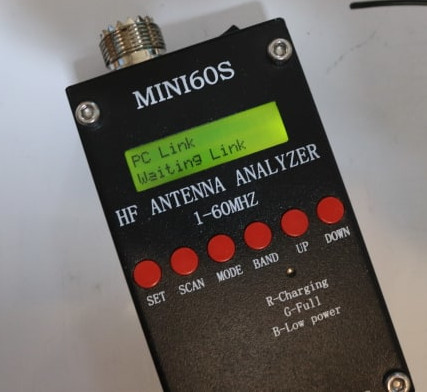
Tip: Do this before opening the app. The analyzer may time out and exit PC Link mode if you wait too
long.
Step 2 — Connect in the App
- Make sure Bluetooth is enabled on your phone.
- Open the Antenna Analyzer app.
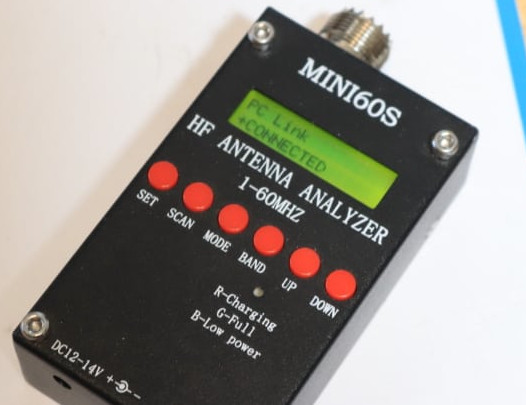
- Tap Connect and select your Mini60S from the list.
- Once connected, select a band and tap Scan.
Troubleshooting
- App can’t find the device: Make sure the Mini60S display shows PC Link mode and Bluetooth is on.
- Connection times out: The analyzer may have exited PC Link mode — repeat Step 1.
- Permission denied: Go to your phone’s Settings > Apps > Mini60S Analyzer and grant Bluetooth and Location permissions.
- Already connected elsewhere: Only one device can connect at a time. Disconnect any other paired sessions first.
For further support, please leave a review on the Google Play Store or contact us through the Play Store
listing.